WoodCutTool Learn
Missing-Part and Rework Closeout
Missing-part and rework closeout prevents exceptions from disappearing into informal shop activity. It identifies what the released project required, what physical parts exist, why a part is missing or unacceptable, which revision controls the correction, where replacement material comes from, and what evidence returns the item to accepted status. The process protects final quantities and the as-built record without erasing the cause or double-counting old and replacement parts.
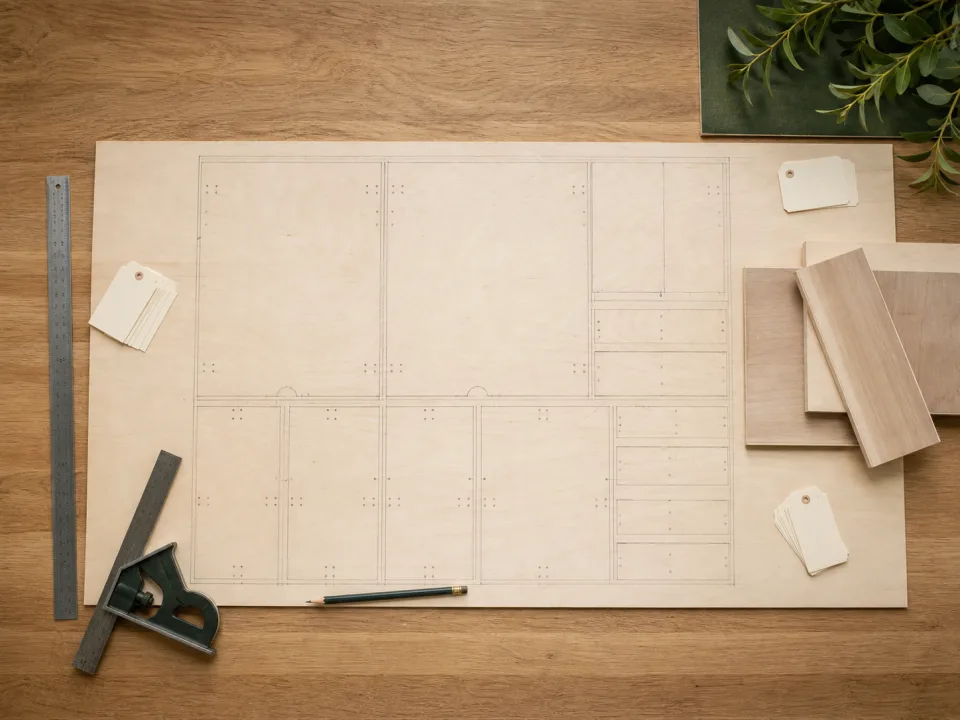
Target keywords
Confirm the exception against the released list
Verify room, assembly, part ID, name, quantity instance, material, dimensions, finish, grain, edge treatment, hardware relationship, and current revision. Search packing, staging, machining, finish, and installation locations before declaring a remake. Use the quantity diagnostic when the source list itself may be wrong.
Classify the physical status and cause
Mark missing, damaged, rejected, undersized, overcut, mis-machined, wrong material, wrong finish, obsolete, held, or reworkable. Record where the exception was found and the evidence supporting the cause. Keep defective or superseded pieces segregated so an old label cannot return them to accepted production.
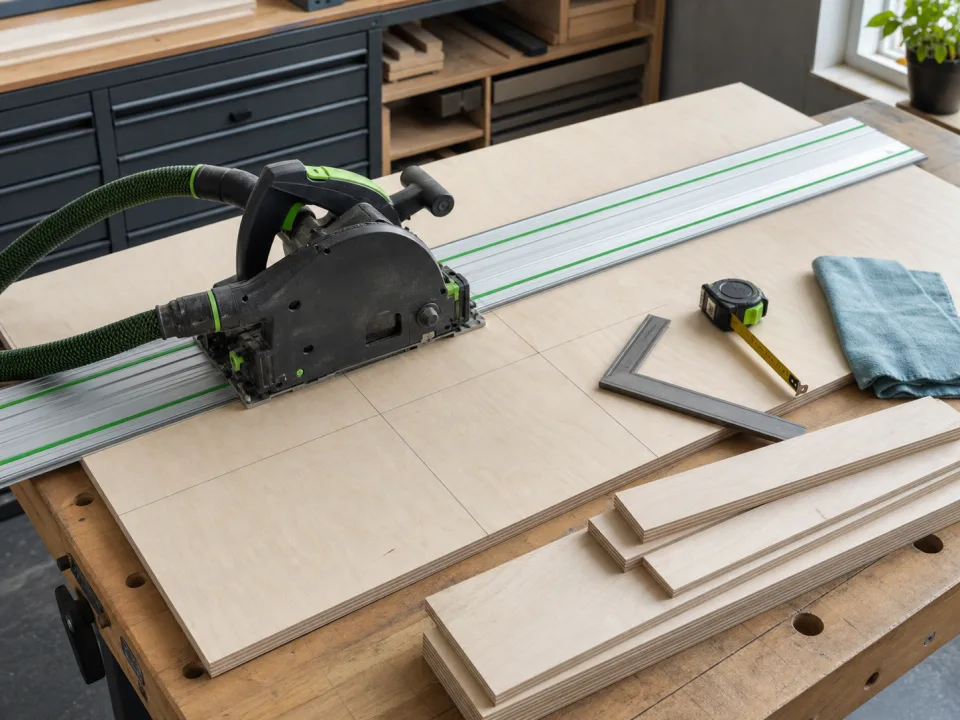
Approve a disposition
Choose locate and accept, rework, remake, reuse elsewhere, approved omission, return, or scrap with an owner and acceptance boundary. Rework must specify the operation, remaining allowance, final dimension, finish consequence, and inspection. Structural, hardware, finish-system, and code-sensitive changes require the relevant design or qualified approval rather than a shop-only decision.
Plan replacements from current data
Create a replacement row under the current revision and preserve the link to the original part. Test retained offcuts first only when their identity, size, condition, grain, and face match. Add the rectangle to CutList and confirm the complete replacement layout rather than cutting from the first scrap that appears large enough.
Inspect and rejoin the workflow
Apply the same dimensional, edge, face, machining, label, and assembly acceptance used for original production. Record the new part ID or quantity instance, inspection result, and next station. Complete the shop punch-list check before packing or delivery so a physical remake is not treated as closed while still missing finish, hardware, or destination labels.
Reconcile final counts and costs
Compare released, accepted, reworked, remade, scrapped, omitted, delivered, and installed quantities. Update material use, purchase differences, yield variance, punch items, and the as-built record. Close the exception only when the accepted physical part and final documentation agree, then use the project-closeout checklist to retain the cause and corrective lesson.
When to move from learning to planning
Reading is useful when you are choosing a method, but the project becomes real when dimensions, quantities, material costs, and waste are entered into a tool. If the article describes the problem you are facing, the next step is to test your own numbers. Start with the tools hub, choose the calculator that matches the material, and compare the result before buying stock. For plywood and cabinet projects, move the final plan into CutList so the layout can be saved, reopened, exported, and used at the saw.
Recommended next step
If you only need a quick estimate, open the related browser calculator and run the first pass. If the plywood or cabinet job has many parts, expensive material, or changing measurements, use CutList as the saved project workspace after reviewing the browser result. That creates a clear path from learning the method to checking the layout, preserving revisions, and carrying a cutting sequence to the shop.
Move from reading to a checked plan
Apply missing-part and rework closeout to a saved project
Test the method with your own dimensions first. Use CutList when the reviewed plywood plan needs saved revisions, offline access, a cutting sequence, or a Pro PDF handoff.
- Free basic layouts
- No login
- No cloud upload
- Works offline
 On a computer? Scan with your iPhone or iPad.